Containerlab Web GUI#
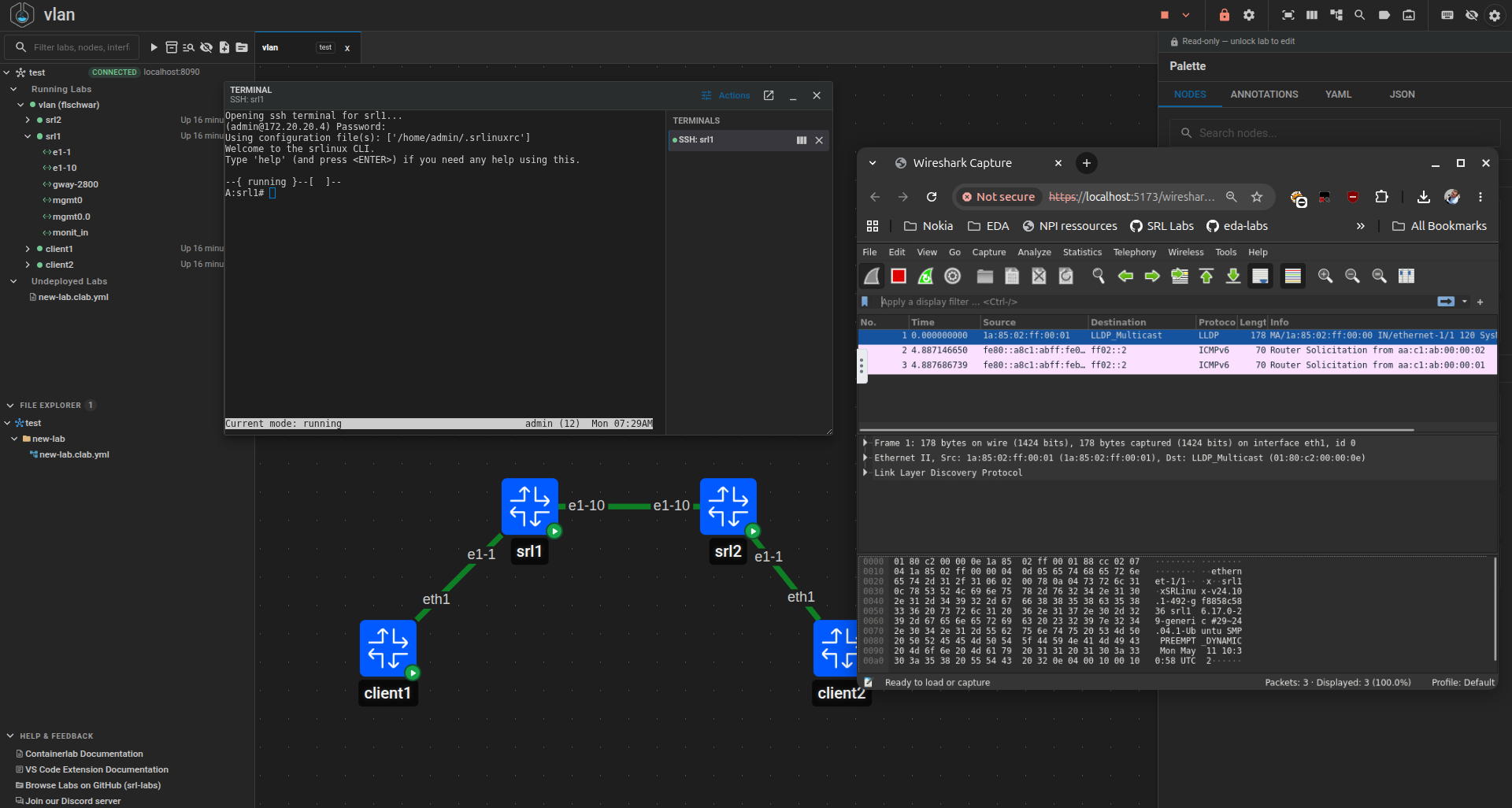
The Containerlab Web GUI is the standalone browser application for Containerlab. It runs as a container, serves the shared Containerlab GUI, and connects to one or more reachable clab-api-server endpoints.
The web GUI does not run labs by itself and does not start clab-api-server for you. The API server performs the lab operations on the Linux host that owns the container runtime and lab files.
Before you start#
Install and start clab-api-server on the lab host first. For a shared lab server, the systemd service is the recommended API server installation method.
The user who logs in from the web app must:
- exist on the API server host
- know their Linux password
- belong to the configured
API_USER_GROUPorSUPERUSER_GROUP
With the default API server settings, add the user to clab_api:
See the API Server manual for full installation, upgrade, TLS, group, and security details.
Installation#
The web GUI is published as a multi-arch container image:
Same Linux host#
When the web GUI and API server run on the same Linux host, host networking is the simplest option:
docker run -d --name containerlab-app \
  --restart unless-stopped \
  --network host \
  ghcr.io/srl-labs/containerlab-web:latest
Open:
If the browser warns about a self-signed certificate, accept it for the local web GUI endpoint.
Remote API server#
When the API server runs on another host, set CLAB_API_URL to the API endpoint that the web GUI container can reach:
docker run -d --name containerlab-app \
  --restart unless-stopped \
  -p 3001:3001 \
  -e CLAB_API_URL=https://lab-host.example.com:8090 \
  ghcr.io/srl-labs/containerlab-web:latest
Open:
Users can still add or choose a different API endpoint on the login screen.
Bridge network to same host#
If you prefer bridge networking while the API server runs on the Docker host, use Docker's host gateway name:
docker run -d --name containerlab-app \
  --restart unless-stopped \
  -p 3001:3001 \
  --add-host=host.docker.internal:host-gateway \
  -e CLAB_API_URL=https://host.docker.internal:8090 \
  ghcr.io/srl-labs/containerlab-web:latest
First login#
On first launch, add an API server endpoint and log in with a Linux user accepted by that API server.
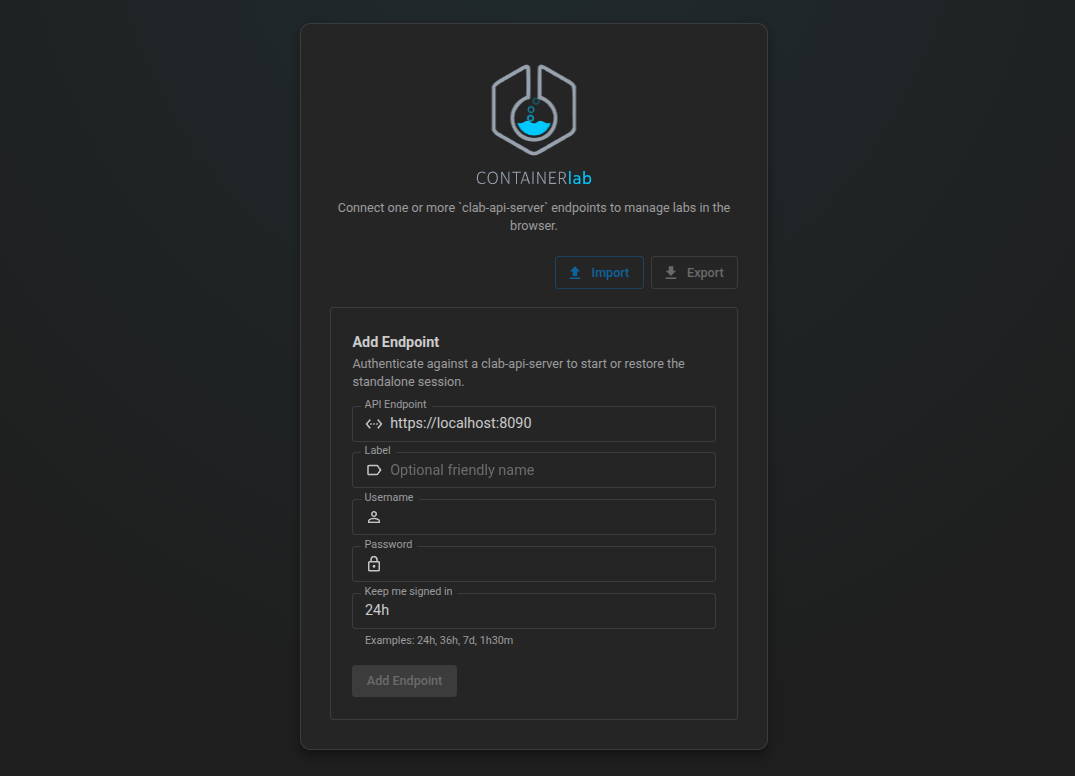
The web app asks for:
- API server URL, for example
https://lab-host.example.com:8090 - endpoint label
- Linux username
- Linux password
- session duration
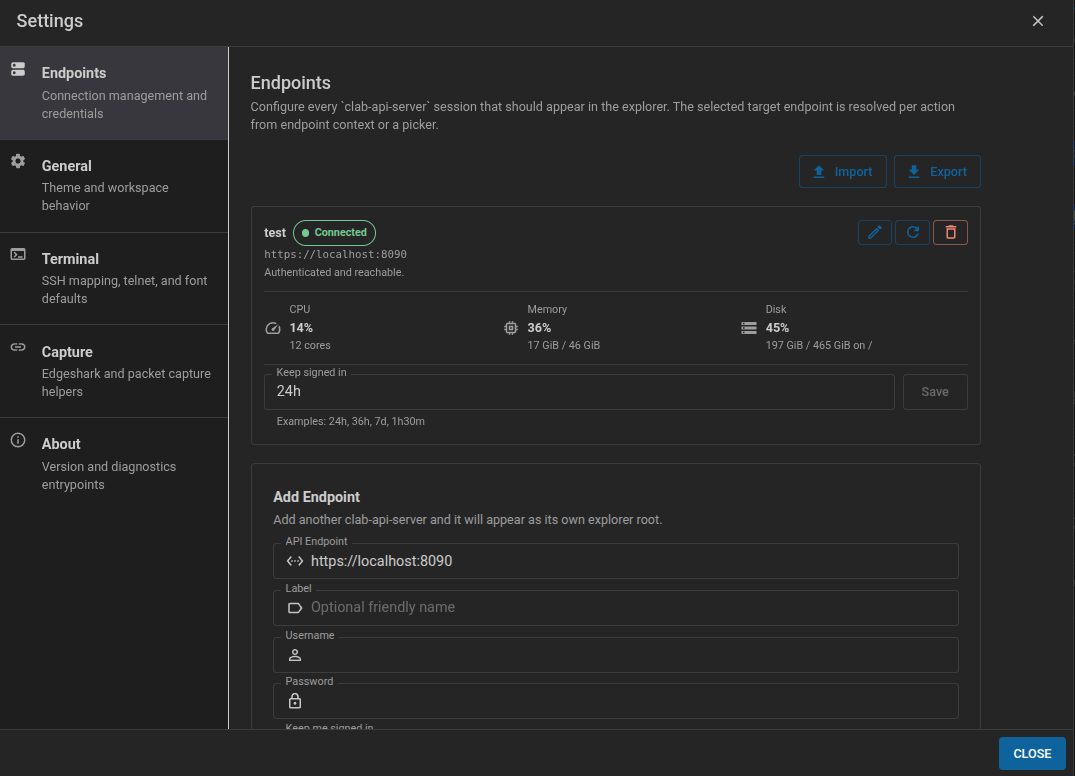
After login, the web app stores an endpoint session and uses the API server token for lab operations. Endpoint settings let you add, edit, reconnect, remove, import, and export API server connections.
Multiple endpoints#
One web GUI instance can connect to several API server endpoints. This is useful when the same browser UI is used for multiple lab hosts, for example a shared lab server and a few personal VMs.
Each endpoint profile contains:
- API server URL
- endpoint label
- Linux username
- session duration
Passwords and active tokens are not part of exported endpoint profiles. After importing endpoint profiles in another browser or another web GUI instance, reconnect each endpoint with the Linux password for that API server.
The Explorer groups labs and topology files by endpoint. Actions run on the endpoint that owns the selected lab or topology file. If an action starts from a place where the endpoint is ambiguous, the app asks which connected endpoint to use.
Custom node templates are also endpoint and user specific. The API server stores them for the Linux user who is logged in on that endpoint, under that user's ~/.clab directory. If you create a template while connected to lab-a as alice, it is available to alice on lab-a; connecting to another endpoint or another user loads that endpoint/user template set.
Configuration#
| Variable | Default | Purpose |
|---|---|---|
PORT |
3001 |
Web GUI server port. |
CLAB_API_URL |
https://localhost:8090 |
Default API URL shown on the login screen. |
CLAB_API_TLS_VERIFY |
false |
Verify the upstream API server TLS certificate. |
WEB_TLS_ENABLE |
true |
Serve the web GUI over HTTPS. |
WEB_TLS_AUTO_CERT |
true |
Generate a local self-signed web certificate when no cert files are set. |
WEB_TLS_CERT_FILE |
unset | Path to a web TLS certificate. |
WEB_TLS_KEY_FILE |
unset | Path to a web TLS private key. |
WEB_TLS_HOST |
auto-detected | Hostname used when generating a local web certificate. |
CLAB_STANDALONE_INTERFACE_STATS_INTERVAL |
1s |
Interface statistics interval requested from the API event stream. |
Networking and TLS#
The browser connects to the web GUI. The web GUI container connects to clab-api-server. Make sure both paths are reachable:
- browser to web GUI port,
3001by default - web GUI container to API server port,
8090by default
The standard web GUI flow does not require the browser to call clab-api-server directly. Configure API server CORS only if you intentionally expose the API server to browser clients outside the web GUI proxy.
CLAB_API_TLS_VERIFY=false is convenient for self-signed API server certificates. Set it to true when the API server presents a certificate trusted by the web GUI container.
macOS and Windows#
Containerlab labs still run in Linux. On macOS and Windows, run clab-api-server in the Linux VM, devcontainer, Docker Desktop VM, OrbStack VM, or remote lab host that owns the container runtime and lab files. Then run the web GUI where it can reach that API endpoint.
Common checks#
Check that the web GUI container is running:
Check that the API server is reachable from the host:
Check the API server service:
If login fails, verify that the user exists on the API server host and belongs to the configured API_USER_GROUP or SUPERUSER_GROUP.
If the web GUI cannot connect to the API server, verify CLAB_API_URL from inside the web GUI container.