Containerlab VS Code Extension#
The Containerlab VS Code extension brings Containerlab into the editor. It embeds the shared Containerlab GUI, discovers topology files in your workspace, shows running labs from the VS Code host, and exposes common lab operations through webviews, editor buttons, context menus, keybindings, and the command palette.
VS Code does not use clab-api-server. The extension runs Containerlab commands directly in the VS Code environment.
If you prefer to sit back and watch a video about this extension, say no more!
Installation#
Install the extension from the VS Code Marketplace, or open the Extensions tab in VS Code and search for Containerlab.
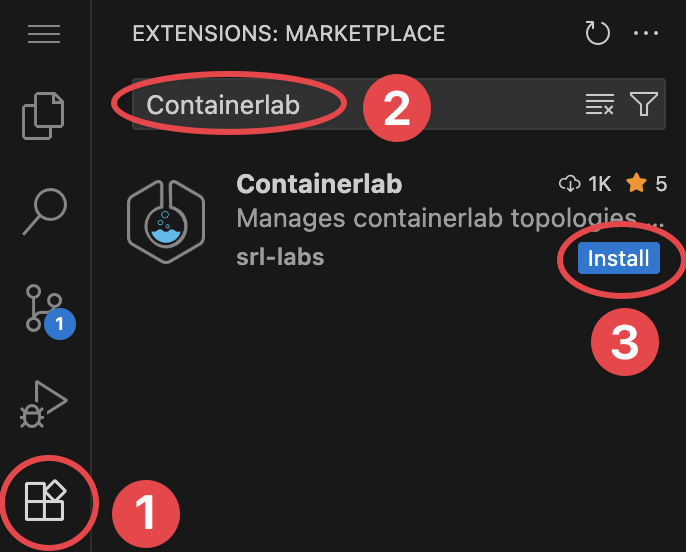
After installation, VS Code shows the Containerlab activity bar icon and opens the welcome page unless containerlab.showWelcomePage is disabled.
Containerlab installation
The extension checks whether the containerlab binary is available. If it is not found, VS Code prompts you to install Containerlab.
Host requirements#
The extension runs commands where VS Code runs:
- local VS Code means the local machine
- Remote SSH means the remote SSH host
- WSL means the selected WSL environment
The extension is supported on Linux and WSL. To manage a remote lab host, connect to that host with the Remote SSH extension and open the Containerlab view there.
How to use Remote SSH
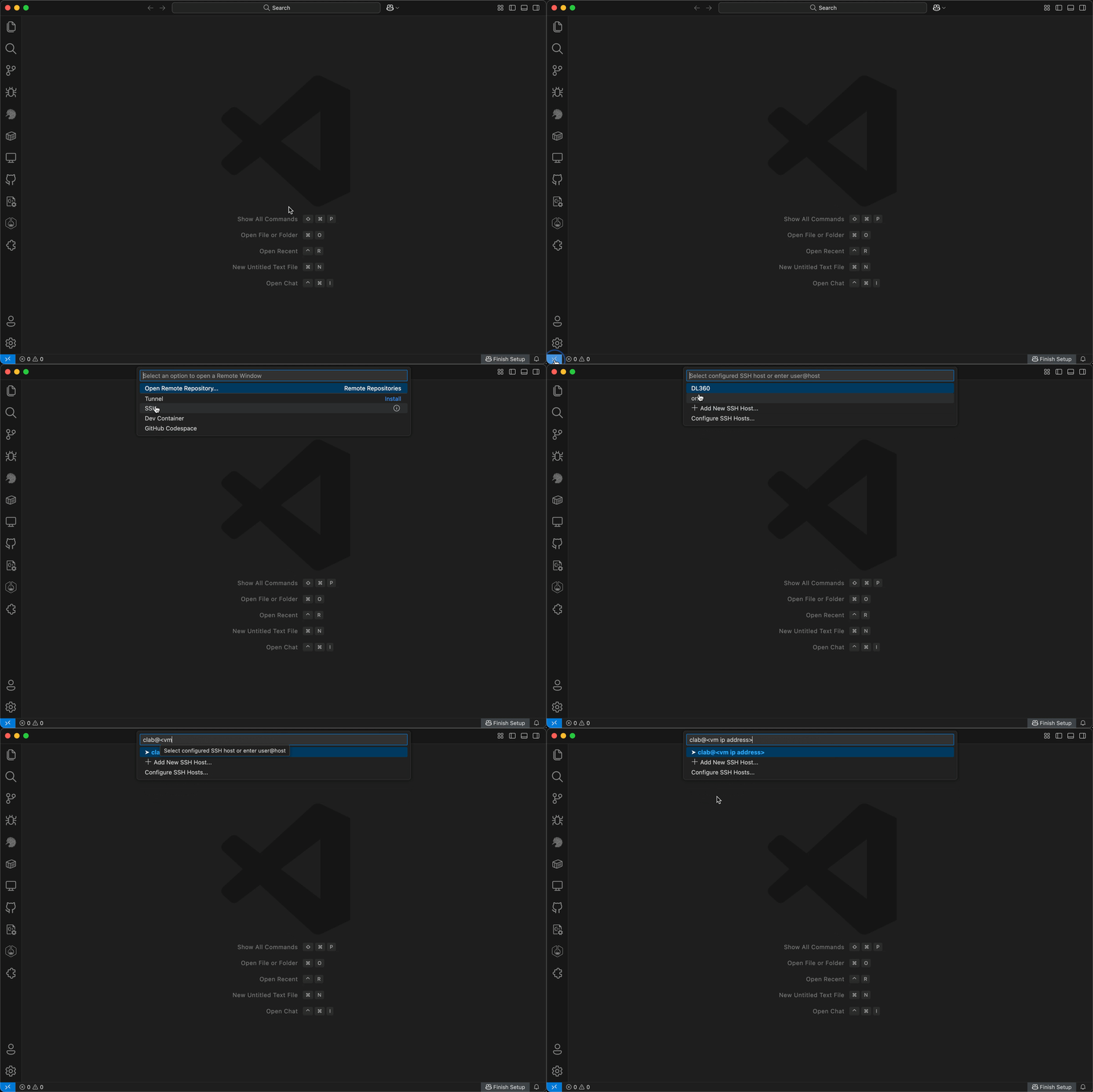
Typical requirements are:
- Containerlab installed on the VS Code host
- Docker available to the user running VS Code
- the user running VS Code is either root or belongs to both the
clab_adminsanddockergroups
Docker is the primary runtime for extension runtime features.
Open the GUI#
Click the Containerlab icon in the VS Code activity bar to open the embedded GUI.
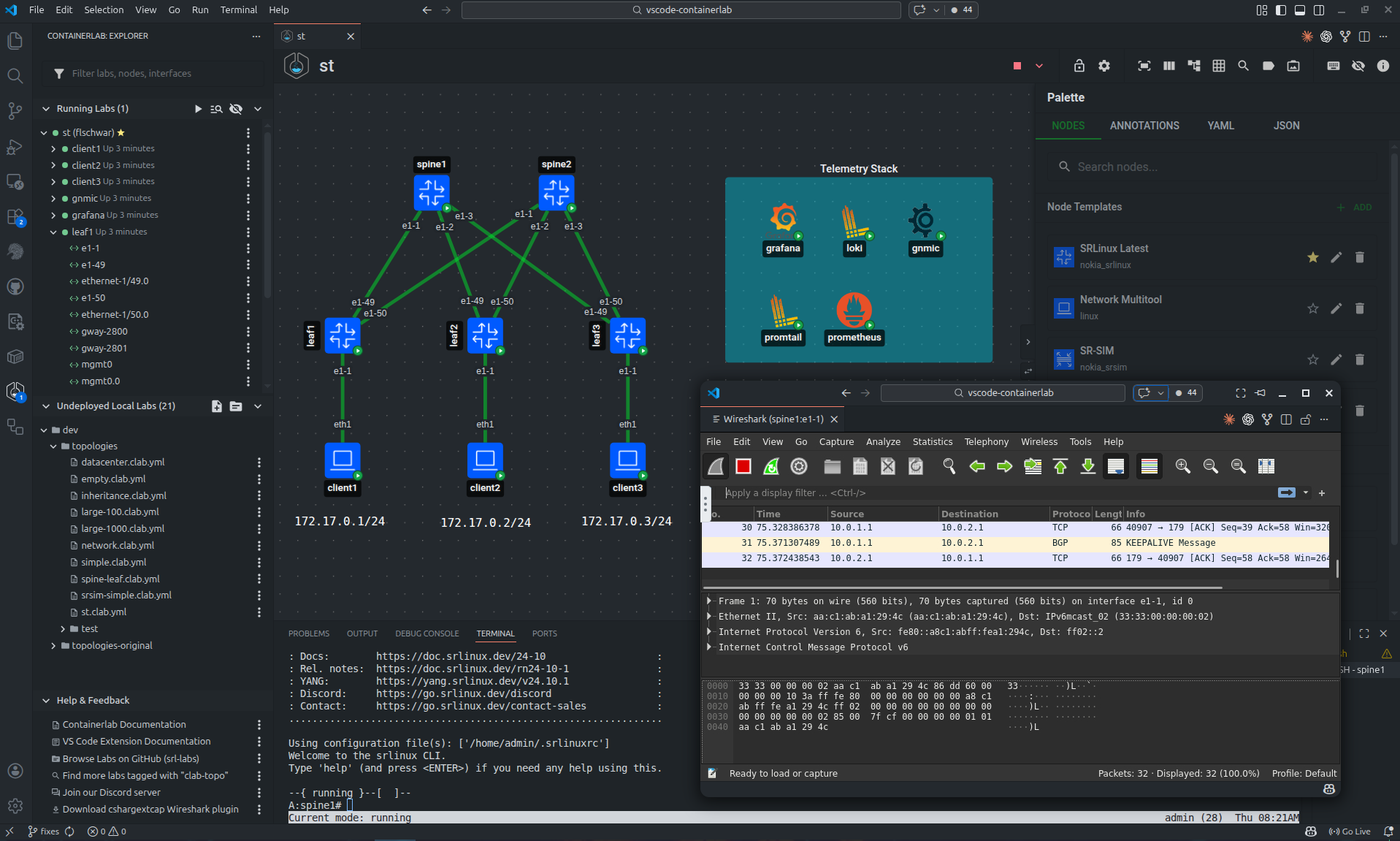
The extension discovers *.clab.yml and *.clab.yaml files from the current workspace. It also shows running labs from the Containerlab host, including labs whose topology files are outside the current workspace.
Running labs update from the Containerlab event stream by default. If event streaming is unavailable, set containerlab.refreshMode to polling.
Work with topology files#
When a .clab.yml or .clab.yaml file is open, VS Code adds Containerlab actions to the editor title and editor context menu.
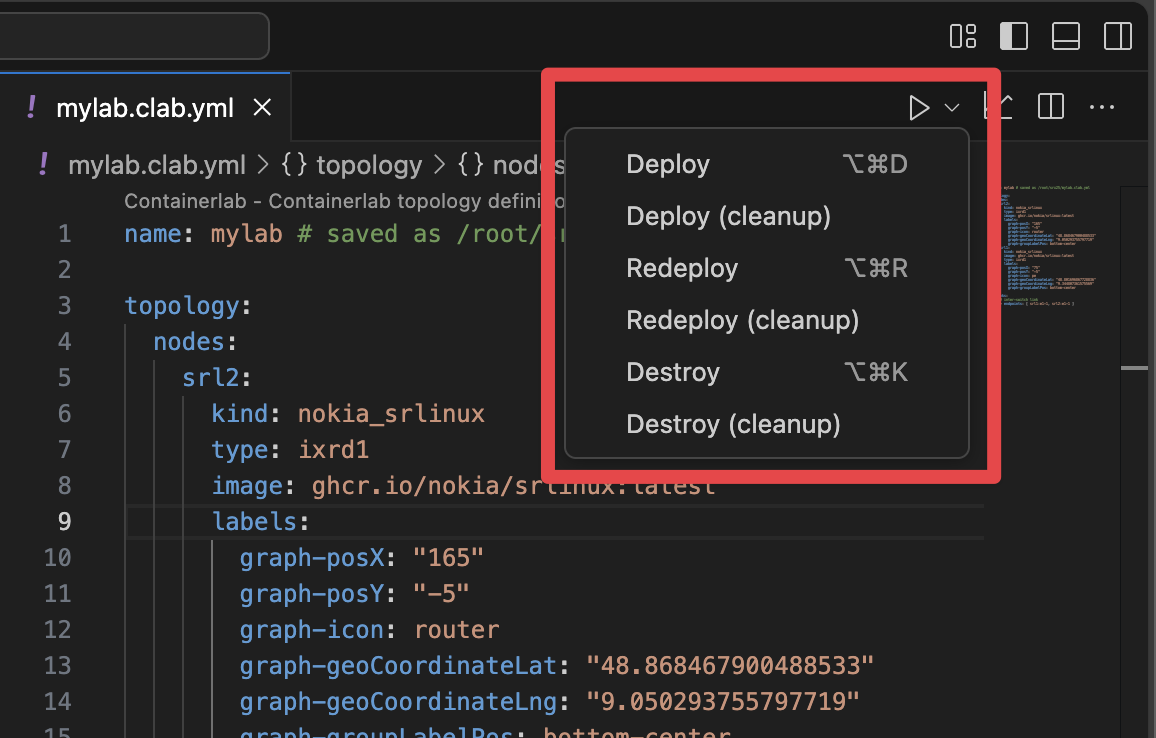
You can also run topology commands from the command palette with Ctrl+Shift+P or Cmd+Shift+P.

Default keybindings:
| Keys | macOS | Action |
|---|---|---|
Ctrl+Alt+D |
Cmd+Alt+D |
Deploy |
Ctrl+Alt+R |
Cmd+Alt+R |
Redeploy |
Ctrl+Alt+K |
Cmd+Alt+K |
Destroy |
Ctrl+Alt+G |
Cmd+Alt+G |
Graph with TopoViewer |
When you open a topology with TopoViewer, the shared editor is shown in a VS Code webview. The YAML file can be opened next to the canvas, so source and diagram stay close together.
Runtime actions#
Shared GUI workflows are documented on the Containerlab GUI page. In VS Code, those workflows call extension commands and use the VS Code host environment.
This means:
- deploy, redeploy, destroy, inspect, graph, save, and node actions run from the VS Code host
- command output is written to the Containerlab output channel or a VS Code terminal
- shell, SSH, and Telnet actions open VS Code terminals
- packet capture opens an Edgeshark or Wireshark VNC workflow from the VS Code host
- Remote SSH forwards the whole workflow to the remote host
The extension also exposes lab sharing commands for SSHX and GoTTY, and fcli helper commands for SR Linux labs.
Settings reference#
The settings are under the containerlab. namespace.
General#
| Setting | Default | Description |
|---|---|---|
showWelcomePage |
true |
Show the welcome page when the extension activates. |
skipUpdateCheck |
false |
Skip checking for Containerlab updates during activation. |
binaryPath |
"" |
Absolute path to the Containerlab binary. Leave empty to resolve from PATH. |
skipCleanupWarning |
false |
Skip cleanup warning popups for redeploy/destroy cleanup actions. |
runtime |
docker |
Container runtime used by extension commands. |
refreshMode |
events |
Use real-time containerlab events updates or periodic polling. |
pollInterval |
5000 |
Polling interval in milliseconds when refreshMode is polling. |
enableInterfaceStats |
true |
Show interface statistics in the embedded GUI. Disable to reduce resource usage. |
gotty.port |
8080 |
Port for GoTTY web terminal sharing. |
Command options#
| Setting | Default | Description |
|---|---|---|
deploy.extraArgs |
"" |
Extra arguments appended to deploy and redeploy commands. |
destroy.extraArgs |
"" |
Extra arguments appended to destroy commands. |
drawioDefaultTheme |
nokia_modern |
Default Draw.io theme: nokia_modern, nokia, or grafana. |
extras.fcli.extraDockerArgs |
"" |
Extra Docker or Podman arguments appended to fcli commands. |
TopoViewer#
| Setting | Default | Description |
|---|---|---|
editor.customNodes |
SR Linux and Network Multitool templates | Custom node templates shown in the TopoViewer Node Templates palette. |
editor.updateLinkEndpointsOnKindChange |
true |
Update connected link endpoints when a node kind changes. |
editor.lockLabByDefault |
true |
Start TopoViewer sessions with the lab canvas locked. |
editor.customNodes backs the node-template and drag-and-drop workflow described in the shared GUI page. It can include full node template data such as kind, type, image, icon, base name, interface pattern, binds, environment variables, and startup config.
Example:
{
  "containerlab.editor.customNodes": [
    {
      "name": "SR Linux Latest",
      "kind": "nokia_srlinux",
      "type": "ixr-d1",
      "image": "ghcr.io/nokia/srlinux:latest",
      "icon": "router",
      "baseName": "srl",
      "interfacePattern": "e1-{n}",
      "setDefault": true
    }
  ]
}
Node actions#
| Setting | Default | Description |
|---|---|---|
node.execCommandMapping |
{} |
Map node kind to default shell attach command. |
node.sshUserMapping |
{} |
Map node kind to SSH username. |
node.telnetPort |
5000 |
Port used by the Telnet node action. |
Example:
{
  "containerlab.node.execCommandMapping": {
    "nokia_srlinux": "sr_cli",
    "arista_ceos": "Cli"
  },
  "containerlab.node.sshUserMapping": {
    "nokia_srlinux": "admin",
    "cisco_xrd": "clab"
  }
}
Packet capture#
| Setting | Default | Description |
|---|---|---|
capture.preferredAction |
Wireshark VNC |
Default interface capture action: Edgeshark or Wireshark VNC. |
capture.remoteHostname |
"" |
Hostname or IP used by Edgeshark packet capture links. |
capture.packetflixPort |
5001 |
Packetflix WebSocket port used by Edgeshark. |
capture.wireshark.dockerImage |
ghcr.io/kaelemc/wireshark-vnc-docker:latest |
Wireshark VNC container image. |
capture.wireshark.pullPolicy |
always |
Pull policy for the Wireshark VNC image: always, missing, or never. |
capture.wireshark.theme |
Follow VS Code theme |
Wireshark VNC theme. |
capture.wireshark.stayOpenInBackground |
true |
Keep Wireshark VNC sessions alive when the tab is not active. |
capture.wireshark.vncCaptureHostname |
"" |
Hostname override for VNC capture Packetflix URIs. |
capture.edgeshark.extraEnvironmentVars |
HTTP_PROXY=, http_proxy= |
Extra environment variables for Edgeshark containers. |
Troubleshooting#
The GUI does not show running labs#
Check that VS Code is connected to the machine where Containerlab runs. For remote lab hosts, use Remote SSH and open the Containerlab view in that remote VS Code window.
If event updates are not available, set containerlab.refreshMode to polling.
Interfaces are missing#
Labs deployed with Containerlab versions before 0.64.0 may need to be redeployed before interface discovery and statistics work as expected.
Packet capture does not open#
Check that Docker is available on the VS Code host and that the capture hostname settings match how your browser or VS Code webview can reach the lab host.